iR Remote XBOX ONE
3.8
٨٫٣ ألفتنزيل
1.42 ميجابايتالحجم
موقّع وموثوق
لقطات الشاشة
عن التطبيق
Multimedia Infrared Remote Controller for Xbox One
YOUR PHONE / TABLET must have an IR transmitter (IR BLASTER)
If you have an Xbox 360 download
<a href="https://play.google.com/store/apps/details?id=com.newdroid75.xboxirremote">iR Remote for XBOX 360</a>
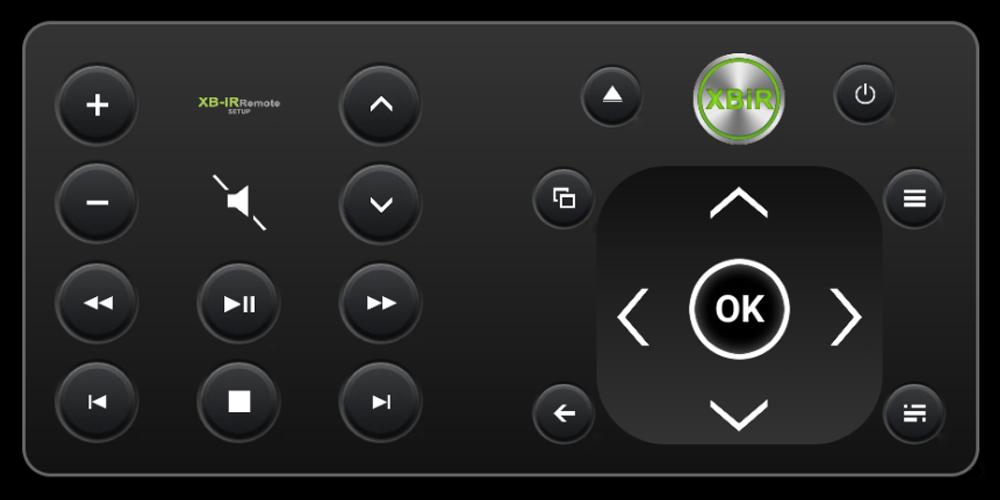
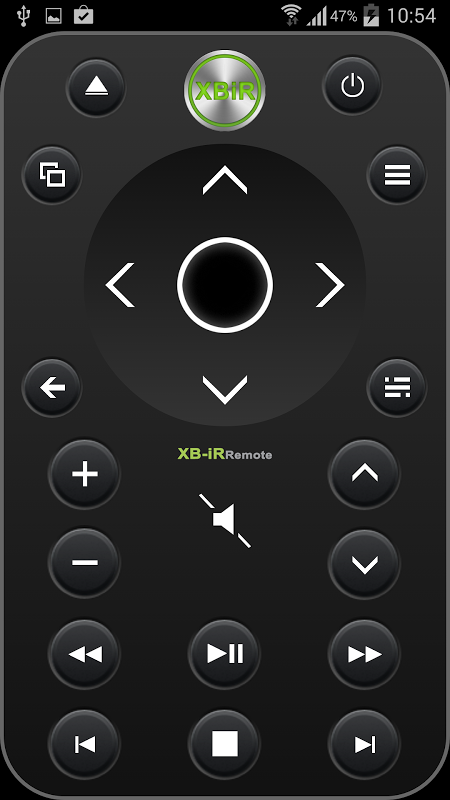
iR Remote XBOX ONE is designed to easily control your Blu-ray / DVD movies, streaming video, Netflix, apps, Xbox dashboard, Windows Mediacenter, TV power and volume.
You can immediately control your Xbox One
You do not have to wirelessly sync it to the console.
iR Remote XBOX ONE uses Infrared (IR) technology to communicate with the console. For your remote to best communicate with your console, your phone ir transmitter should be pointed at the front of the console.
Note: The IR receiver is on the console (approximately behind the eject button!)
not the Kinect sensor, which has separate IR cameras and emitters.
The Kinect sensor sends IR signals to your device (TV) to change channels and volume.
OneGuide allows you to change channels on your compatible cable or satellite boxes.
To control your TV power and volume, you’ll need to configure your console to control your TV. You’ll also have to make sure that your Kinect sensor is on because controlling these functions is enabled by the Xbox One Console software and the Kinect sensor.
*Power on/Home button.
Will turn your console
*View button.
Works the same as the View button on your Xbox One Controller.
Use this button to focus on an activity in a game or app, like pulling up a map during a role-playing game or accessing the address bar in Internet Explorer.
The functions of this button vary depending on the app or game.
*Menu button.
Similar to the Menu button on your Xbox One controller, you can use this button to access game and app menu options like Settings or Help. This button also works for other commands, including as the Enter key on the Xbox One virtual keyboard.
*Select button.
Used to select an item on screen, similar to pressing the A button on the controller.
*Navigation button.
Used to navigate the dashboard or menus much like the directional pad on the controller.
*Back button.
Pressing this button will take you back to the previous screen.
*OneGuide button.
Opens OneGuide for your TV. If you haven’t set up OneGuide yet, pressing this button will open the setup screen.
*Volume button.
Used to turn volume up and down on your TV.
You must first set up your console to control your TV.
*Channel button.
Used to change channels on your TV.
You must first set up your console to control your TV.
*Mute button.
Used to mute your TV.
You must first set up your console to control your TV.
*Media control buttons.
Media control buttons include Play, Pause, Rewind, Fast Forward, Stop, Next Chapter, and Previous Chapter.
You can use these functions when watching media content on a disc or from an app.
External hardware NOT required and NOT used.
SAMSUNG GALAXY S6 / S6 Edge / S5 / S4 / NOTE 8 / NOTE 10.1 / NOTE 3 / TAB 7.0plus / TAB 2 / TAB 3 / MEGA smartglass
</div> <div jsname="WJz9Hc" style="display:none">الوسائط المتعددة الأشعة تحت الحمراء وحدة تحكم عن بعد لأجهزة إكس بوكس واحد
الهاتف / TABLET يجب أن يكون جهاز الإرسال IR (IR BLASTER)
إذا كان لديك تحميل أجهزة إكس بوكس 360
<a href="https://play.google.com/store/apps/details؟id=com.newdroid75.xboxirremote"> الأشعة تحت الحمراء البعيدة عن XBOX 360 </a>
تم تصميم الأشعة تحت الحمراء XBOX ONE عن بعد التحكم بك أفلام بلو راي / دي في دي بسهولة، والفيديو، نيتفليكس، وتطبيقات، لوحة أجهزة القياس، ويندوز Mediacenter، السلطة TV والحجم.
يمكنك التحكم على الفور أجهزة إكس بوكس واحد
لم يكن لديك لمزامنة لاسلكيا إلى وحدة التحكم.
الأشعة تحت الحمراء XBOX عن بعد واحد يستخدم الأشعة تحت الحمراء (IR) التكنولوجيا للتواصل مع وحدة التحكم. لجهاز التحكم عن بعد للتواصل بشكل أفضل مع وحدة التحكم الخاصة بك، يجب أن أشار هاتفك مرسل الأشعة تحت الحمراء في الجزء الأمامي من وحدة التحكم.
ملاحظة: (! يقرب من وراء زر الإخراج) واستقبال الأشعة تحت الحمراء على وحدة
لا الاستشعار Kinect، التي لديها كاميرات الأشعة تحت الحمراء منفصلة وبواعث.
الاستشعار Kinect يرسل إشارات الأشعة تحت الحمراء على جهازك (TV) لتغيير القنوات والحجم.
OneGuide يسمح لك لتغيير القنوات على الكابل أو الأقمار الصناعية صناديق متوافقة.
للسيطرة على السلطة TV الخاص بك، وحجم، ستحتاج إلى تكوين وحدة التحكم للسيطرة على جهاز التلفزيون. سيكون لديك أيضا للتأكد من أن أجهزة الاستشعار Kinect الخاص بك في السيطرة على لهذه الوظائف يتم تمكين بواسطة برنامج وحدة تحكم واحدة اكس بوكس والاستشعار Kinect.
* السلطة على / زر البداية.
سوف تتحول حدة التحكم الخاصة بك
* إرسال زر.
يعمل نفس الزر عرض على جهاز تحكم واحد إكس بوكس.
استخدام هذا الزر للتركيز على النشاط في لعبة أو التطبيق، مثل سحب ما يصل خريطة أثناء لعبة الأدوار أو الوصول إلى شريط العنوان في Internet Explorer.
وظائف على هذا الزر تختلف باختلاف التطبيق أو اللعبة.
* زر القائمة.
وعلى غرار زر القائمة على جهاز تحكم إكس بوكس واحد، يمكنك استخدام هذا الزر للوصول إلى المباراة والقائمة التطبيق خيارات مثل إعدادات أو مساعدة. يعمل هذا الزر أيضا لأوامر أخرى، بما في ذلك على مفتاح Enter على لوحة المفاتيح أجهزة إكس بوكس واحد الظاهري.
* اختر زر.
تستخدم لتحديد عنصر على الشاشة، على غرار الضغط على زر A على وحدة تحكم.
* زر التنقل.
تستخدم للتنقل في لوحة القيادة أو القوائم مثل الكثير من توجيهي على وحدة تحكم.
* زر العودة.
سوف الضغط على هذا الزر يأخذك إلى الشاشة السابقة.
* زر OneGuide.
يفتح OneGuide للتلفزيون الخاص بك. إذا كنت لم تقم بإعداد OneGuide بعد، الضغط على هذا الزر ستفتح الشاشة الإعداد.
* زر مستوى الصوت.
تستخدم لتحويل حجم صعودا وهبوطا على جهاز التلفزيون.
يجب عليك أولا إعداد وحدة التحكم للسيطرة على جهاز التلفزيون.
* زر القناة.
تستخدم لتغيير القنوات على جهاز التلفزيون.
يجب عليك أولا إعداد وحدة التحكم للسيطرة على جهاز التلفزيون.
* زر كتم الصوت.
تستخدم لكتم صوت التلفزيون.
يجب عليك أولا إعداد وحدة التحكم للسيطرة على جهاز التلفزيون.
* أزرار التحكم وسائل الإعلام.
وتشمل أزرار التحكم في الوسائط اللعب، وقفة، بحبك، سريع إلى الأمام، توقف، وبعد الفصل، والفصل السابق.
يمكنك استخدام هذه الوظائف عند مشاهدة محتوى الوسائط على القرص أو من التطبيق.
الأجهزة خارجية غير مطلوبة وغير مستخدم.
SAMSUNG GALAXY S6 / S6 حافة / S5 / S4 / NOTE 8 / NOTE 10.1 / NOTE 3 / TAB 7.0plus / TAB 2 / TAB 3 / شركة SmartGlass MEGA</div> <div class="show-more-end">
معلومات إضافية
تاريخ التحديث
2023-06-12الإصدار
1.2.1الحجم
1.42 ميجابايتالمطور
newdroidxboxirremote@gmail.com
تصنيف المحتوى
Everyoneالحزمة
com.newdroid75.xboxoneirremoteالتوقيع (MD5)
5761dfbd70dfa5a0d1d4b0d48f21f00a