WebDAV Server Pro
4.5
٣٫١ ألفتنزيل
1.24 ميجابايتالحجم
موقّع وموثوق
لقطات الشاشة
عن التطبيق
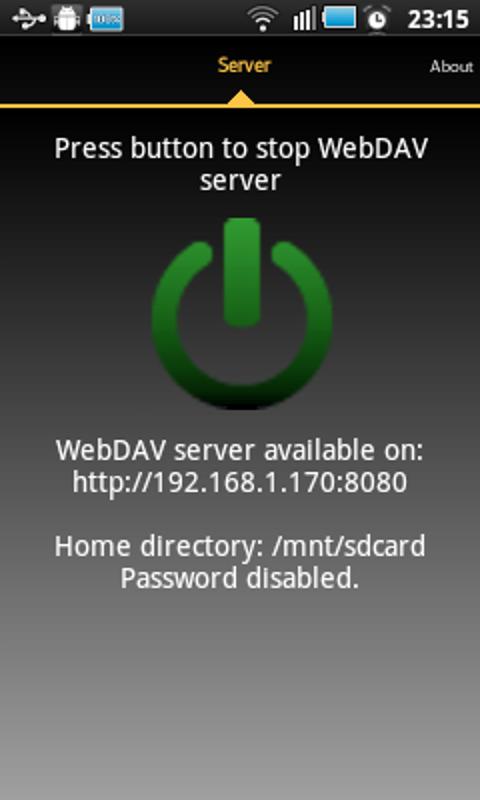
With this application you can mount any directory on your phone, including memory card, as a drive on Windows or Linux. You can also use a WebDAV client to browse a phone directory.
This application has been tested using Windows8 Explorer (should also work with Windows7 but it will not work on WindowsXP) and WebDAV client bitkinex. You can download it from <a href="https://www.google.com/url?q=https://www.google.com/url?q%3Dhttp://www.bitkinex.com/%26sa%3DD%26usg%3DAFQjCNGq0gxS58j3eKdS0mW0CC-z5OuOQw&sa=D&usg=AFQjCNHa72jI5tMynAa2UNdGASpgCl18Qw" target="_blank">http://www.bitkinex.com/</a>
Special thanks to: Beatriz Vera, Peter Ulrich, Gabor Fodor, Manuela Merino García and Anna Rainieri.
Implemented Intents
com.theolivetree.webdavserver.StartWebDavServerPro
com.theolivetree.webdavserver.StopWebDavServerPro
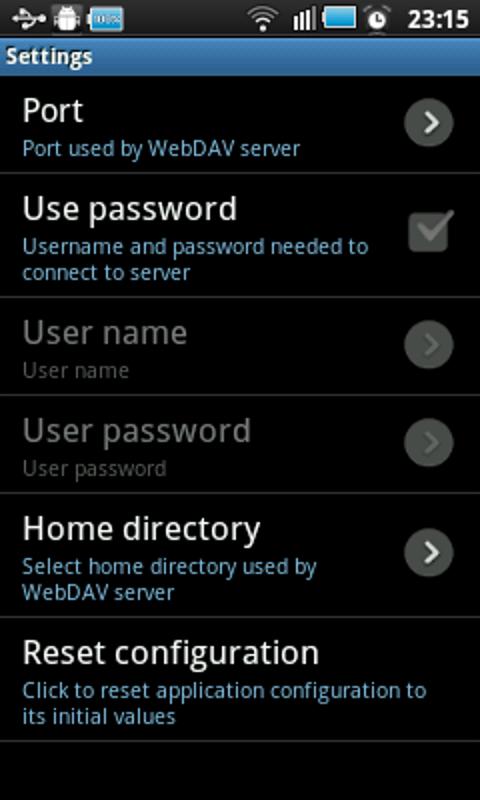
You can find a lock setting to specify how the device should be kept awake while server is running. There are three modes available:
New locks used
*SCREEN_DIM_WAKE_LOCK : Existing mode. Screen is on so energy consumption is higher. Use this mode if connections is dropped.
*WIFI_MODE_FULL : New mode. Screen is off so device will use less energy while server is running but data connection can be dropped. It is not recommended to use this mode.
*WIFI_MODE_FULL_HIGH_PERF: New mode only available on Android >= 3.1. Screen is off so energy consumption should be less than in the first mode. This mode is recommended to save energy but you might find problems so you might to select default lock mode.
How to connect with WebDAV server using USB cable:
This can useful when you have USB cable and no network available.
1) On your phone go to Settings->Applications->Development and set option "USB debugging".
2) Connect your phone to your PC using USB cable.
3) Start adb server. On your PC run command "adb start-server".
adb is a program that you can find on android sdk. Usually you will find it on android-sdk\platform-tools\adb.
4) Forward needed ports from your PC to your phone. On your PC run command "adb forward tcp:8080 tcp:8080"
With this, any connection in your pc to 127.0.0.1:8080 will be forwarded to your phone in port 8080.
5) Run WebDAV server in your phone, open settings and in "Network interfaces" select "Loopback (127.0.0.1)"
6) Start WebDAV server.
7) In your PC connect your WebDAV client to <a href="https://www.google.com/url?q=https://www.google.com/url?q%3Dhttp://127.0.0.1:8080%26sa%3DD%26usg%3DAFQjCNEi536tl582CK83PFmAJMqKS-9C9g&sa=D&usg=AFQjCNFEHEwlJcyKEkW3dl47jKHiMwbDWw" target="_blank">http://127.0.0.1:8080</a> (port might be different, it depends on your WebDAV Server configuration).
Permissions needed:
INTERNET
ACCESS_NETWORK_STATE
ACCESS_WIFI_STATE
Network permission to enable server to open network communication with WebDAV clients.
WRITE_EXTERNAL_STORAGE
Enables WebDAV server write received files from WebDAV clients on sdcard.
WAKE_LOCK
Keeps phone wake only while server is running. If phone is not wake WebDAV server can not be accessed.
Problems with big files:
If you have problems handling big files it might be due to a limitation in Windows webdav client. You can try the following to increase the size of files that Windows webdav client is able to manage:
1) You have to turn on BasicAuth via regedit to allow accessing the App's server by username and password.
[HKEY_LOCAL_MACHINE\SYSTEM\CurrentControlSet\services\WebClient\Parameters]
"BasicAuthLevel"=dword:00000002
2) You have to change Window's limit to file size when using the integrated WebDAV client.
[HKEY_LOCAL_MACHINE\SYSTEM\CurrentControlSet\services\WebClient\Parameters]
"FileAttributesLimitInBytes"=dword:000f4240
3) Restart windows.
This allows file sizes up to 4 Gigabytes handled by the client.
</div> <div jsname="WJz9Hc" style="display:none">مع هذا التطبيق يمكنك تحميل أي دليل على الهاتف الخاص بك، بما في ذلك بطاقة الذاكرة، ومحرك أقراص على ويندوز أو لينكس. يمكنك أيضا استخدام عميل WebDAV لتصفح دليل الهاتف.
وقد تم اختبار هذا التطبيق باستخدام Windows8 إكسبلورر (وينبغي أيضا العمل مع windows7 ولكن لن تعمل على برنامج WindowsXP) و WebDAV العميل bitkinex. يمكنك تحميل البرنامج من <a href="https://www.google.com/url?q=http://www.bitkinex.com/&sa=D&usg=AFQjCNGq0gxS58j3eKdS0mW0CC-z5OuOQw" target="_blank">http://www.bitkinex.com/</a>
شكر خاص إلى: بياتريس فيرا، بيتر أولريش، غابور فودور، مانويلا غارسيا ميرينو وآنا Rainieri.
النوايا تنفيذها
com.theolivetree.webdavserver.StartWebDavServerPro
com.theolivetree.webdavserver.StopWebDavServerPro
يمكنك العثور على إعداد قفل لتحديد الكيفية التي ينبغي أن تبقى مستيقظا الجهاز بينما الملقم قيد التشغيل. هناك ثلاثة أنماط المتاحة:
أقفال الجديدة المستخدمة
* SCREEN_DIM_WAKE_LOCK: الوضع القائم. الشاشة في وضع التشغيل حتى استهلاك الطاقة هو أعلى. استخدم هذا الوضع إذا تم إسقاط الاتصالات.
* WIFI_MODE_FULL: وضع جديد. الشاشة هو خارج ذلك سوف تستخدم الجهاز طاقة أقل بينما الملقم قيد التشغيل ولكن يمكن أن يكون إسقاط اتصال البيانات. لا ينصح لاستخدام هذا الوضع.
* WIFI_MODE_FULL_HIGH_PERF: الوضع الجديدة متوفرة فقط على الروبوت> = 3.1. الشاشة هو خارج ذلك ينبغي أن يكون استهلاك الطاقة أقل مما كانت عليه في الوضع الأول. ويوصى هذا الوضع لتوفير الطاقة ولكن قد تجد مشاكل لذلك قد لتحديد وضع القفل الافتراضي.
كيفية الاتصال مع خادم WebDAV باستخدام كابل USB:
هذا يمكن مفيدا عندما يكون لديك كابل USB وليس الشبكة المتوفرة.
1) على هاتفك انتقل إلى إعدادات> تطبيقات> تنمية ومجموعة الخيار "USB التصحيح".
2) قم بتوصيل الهاتف بالكمبيوتر باستخدام كابل USB.
3) ابدأ خادم بنك التنمية الآسيوي. على جهاز الكمبيوتر الخاص بك تشغيل الأوامر "ADB بدء الخادم".
بنك التنمية الآسيوي هو البرنامج الذي يمكنك العثور على الروبوت SDK. عادة سوف تجد أنه على الروبوت SDK \ منصة أدوات \ بنك التنمية الآسيوي.
4) هناك حاجة إلى الأمام الموانئ من جهاز الكمبيوتر إلى الهاتف الخاص بك. على جهاز الكمبيوتر الخاص بك تشغيل الأوامر "بنك التنمية الآسيوي إلى الأمام TCP: 8080 TCP: 8080"
مع هذا، وسوف ترسل أي اتصال في جهاز الكمبيوتر الخاص بك إلى 127.0.0.1:8080 إلى الهاتف في المنفذ 8080.
5) تشغيل خادم WebDAV في الهاتف، والإعدادات الخاصة بك مفتوحة و"واجهات شبكة الاتصال" "الاسترجاع (127.0.0.1)" حدد
6) ابدأ خادم WebDAV.
7) في جهاز الكمبيوتر الخاص بك اتصال عميل WebDAV ل<a href="https://www.google.com/url?q=http://127.0.0.1:8080&sa=D&usg=AFQjCNEi536tl582CK83PFmAJMqKS-9C9g" target="_blank">http://127.0.0.1:8080</a> (منفذ قد تكون مختلفة، فإنه يعتمد على التكوين خادم WebDAV الخاص بك).
الأذونات المطلوبة:
INTERNET
ACCESS_NETWORK_STATE
ACCESS_WIFI_STATE
إذن الشبكة لتمكين الخادم لفتح شبكة الاتصالات مع عملاء WebDAV.
WRITE_EXTERNAL_STORAGE
تمكن خادم WebDAV كتابة الملفات الواردة من عملاء WebDAV على SDCARD.
WAKE_LOCK
يحافظ على الهاتف تنبيه فقط بينما الملقم قيد التشغيل. إذا كان الهاتف لا يستيقظ لا يمكن الوصول إلى ملقم WebDAV.
مشاكل مع ملفات كبيرة:
إذا كان لديك مشاكل التعامل مع الملفات الكبيرة قد يكون بسبب وجود قيود في عميل Windows WEBDAV. يمكنك محاولة التالية لزيادة حجم الملفات التي عميل Windows WEBDAV قادرة على إدارة:
1) أن يكون لديك لتشغيل BasicAuth عبر regedit لتسمح الوصول إلى الخادم في App عن طريق اسم المستخدم وكلمة المرور.
[HKEY_LOCAL_MACHINE \ SYSTEM \ نقرا \ خدمات \ WebClient مما \ معلمات]
"BasicAuthLevel" = الكلمة المزدوجة: 00000002
2) لديك لتغيير الحد الأقصى للنافذة لحجم الملف عند استخدام عميل WebDAV متكاملة.
[HKEY_LOCAL_MACHINE \ SYSTEM \ نقرا \ خدمات \ WebClient مما \ معلمات]
"FileAttributesLimitInBytes" = الكلمة المزدوجة: 000f4240
3) إعادة تشغيل ويندوز.
وهذا يسمح أحجام الملفات ما يصل إلى 4 غيغا بايت التعامل معها من قبل العميل.</div> <div class="show-more-end">
معلومات إضافية
تاريخ التحديث
2021-01-22الإصدار
1.17الحجم
1.24 ميجابايتالمطور
The Olive Treetheolivetreesoftware@gmail.com
تصنيف المحتوى
Everyoneالحزمة
com.theolivetree.webdavserverproالتوقيع (MD5)
dec1d73c29552cc1b031c1a22502280d